Reviewing a Plan Submitted to Your Department
Follow the steps shown below to the review plans submitted specifically to your department.
1. Click on the Workflow tab and then click on the  icon next to you department's Review Workflow Step. In the pop-up window, click on the file name of the submittal you wish to review. This will download the file.
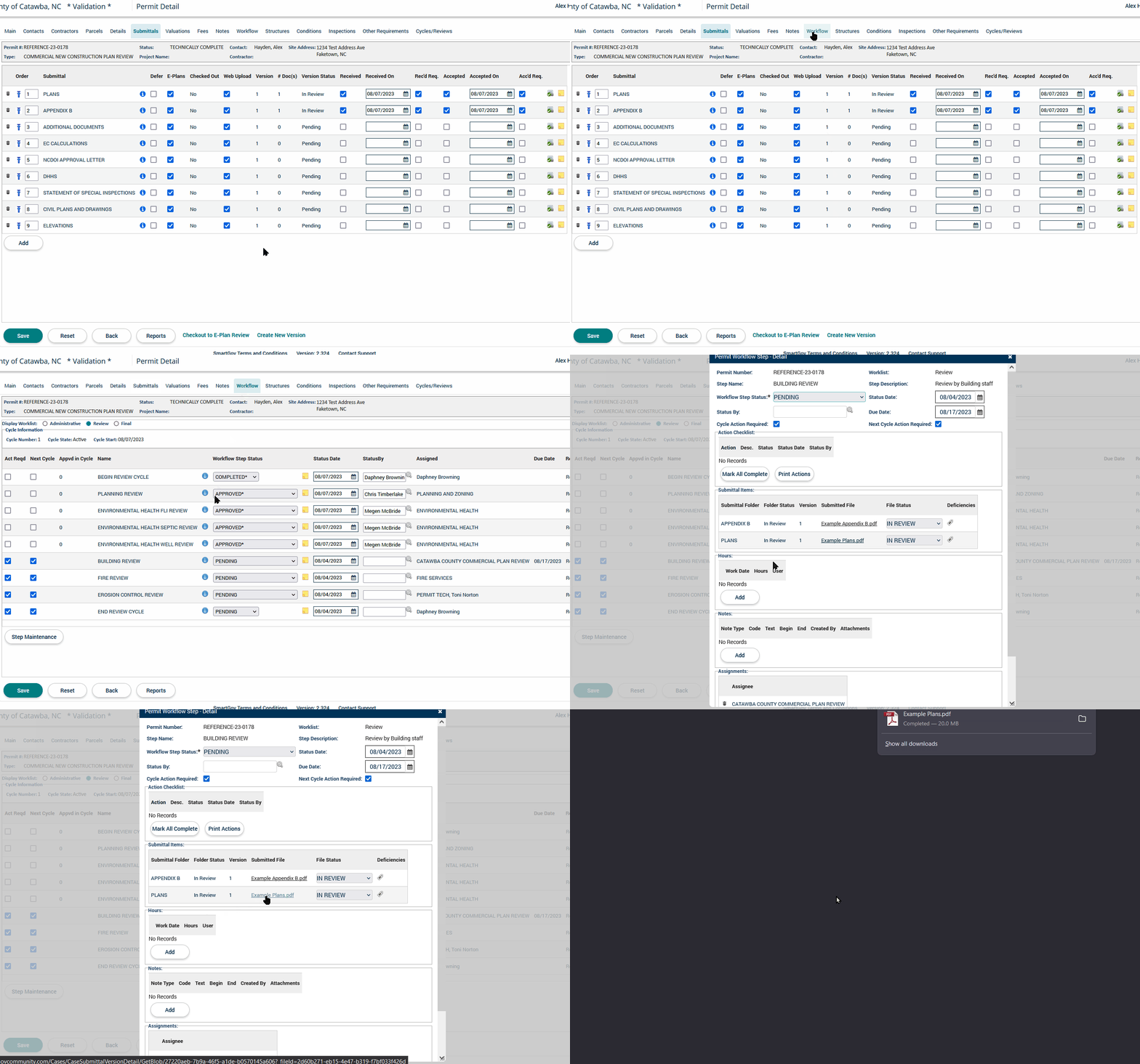
2. Launch Bluebeam Revu using the Desktop shortcut.

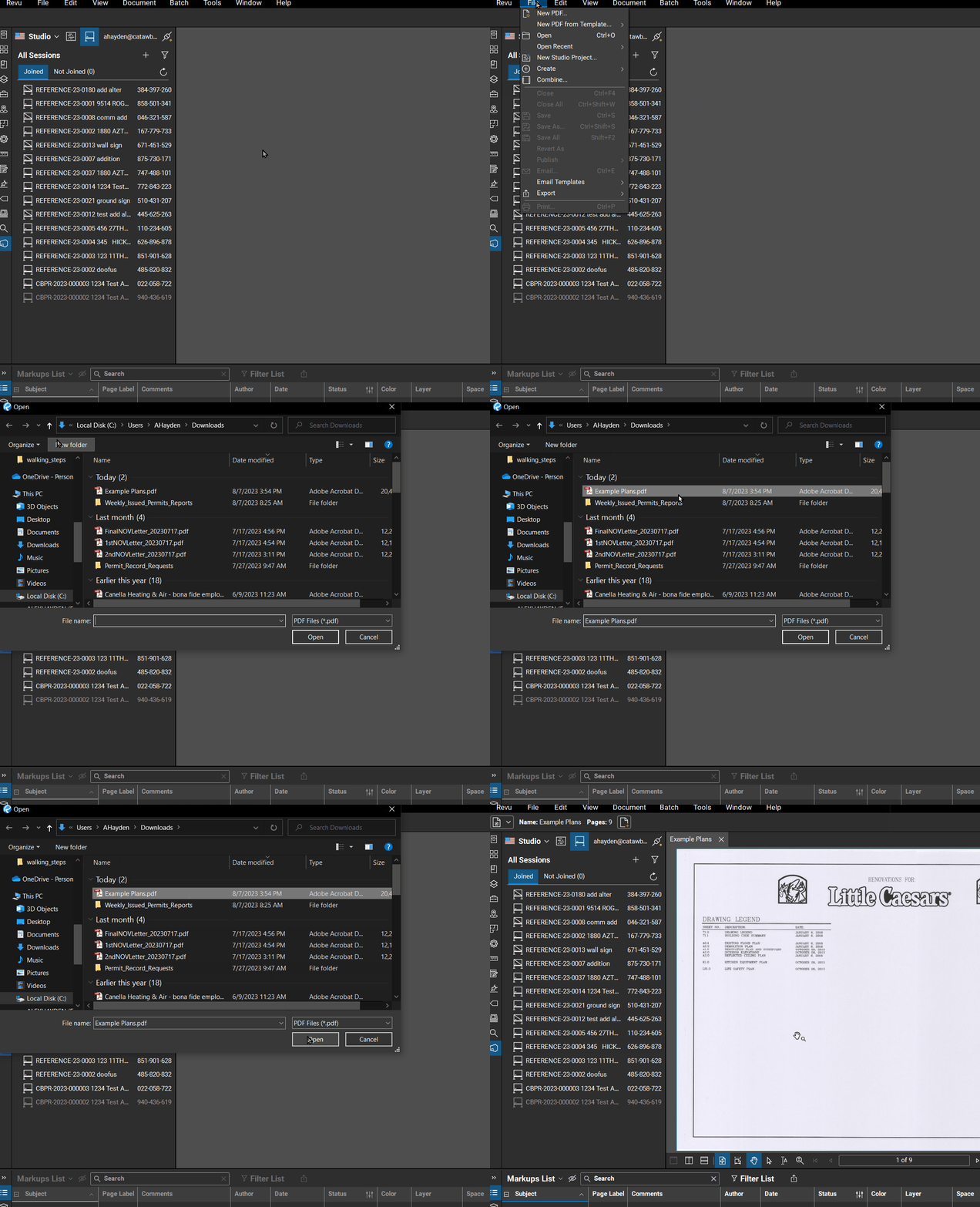
3. In Bluebeam Revu, select File > Open from the top menu. In the File Explorer that opens, navigate to your Downloads folder, click on the file name of the submittal you downloaded, and click the Open button.
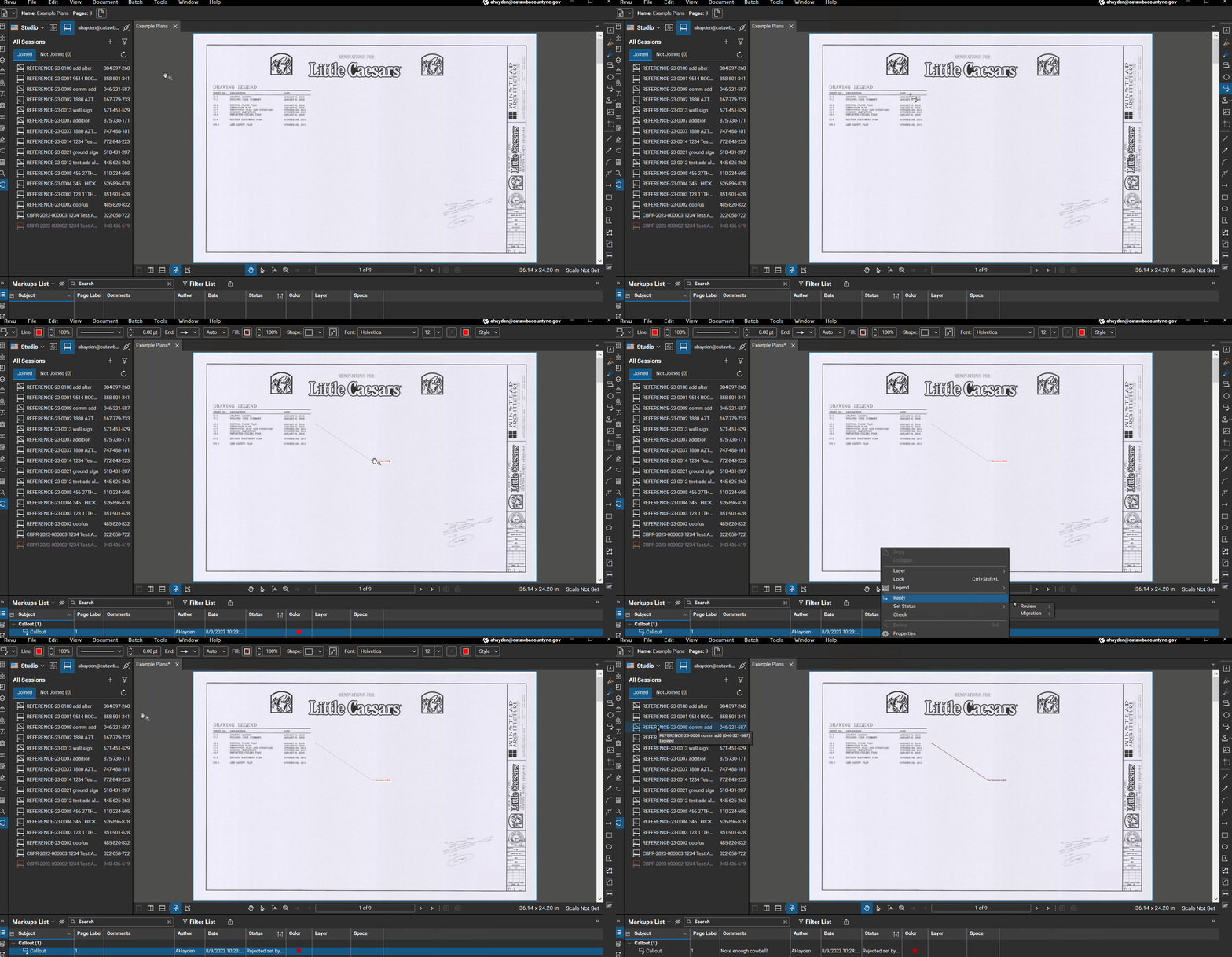
4. Start making markups as you normal would. Remember to color your markups using your Department's/Division's assigned color (details for which can be found in Coloring Markups in Bluebeam Revu) as well as set statuses for your markups. Once finished with your markups, go to the Bluebeam Revu top-menu and select File > Save.
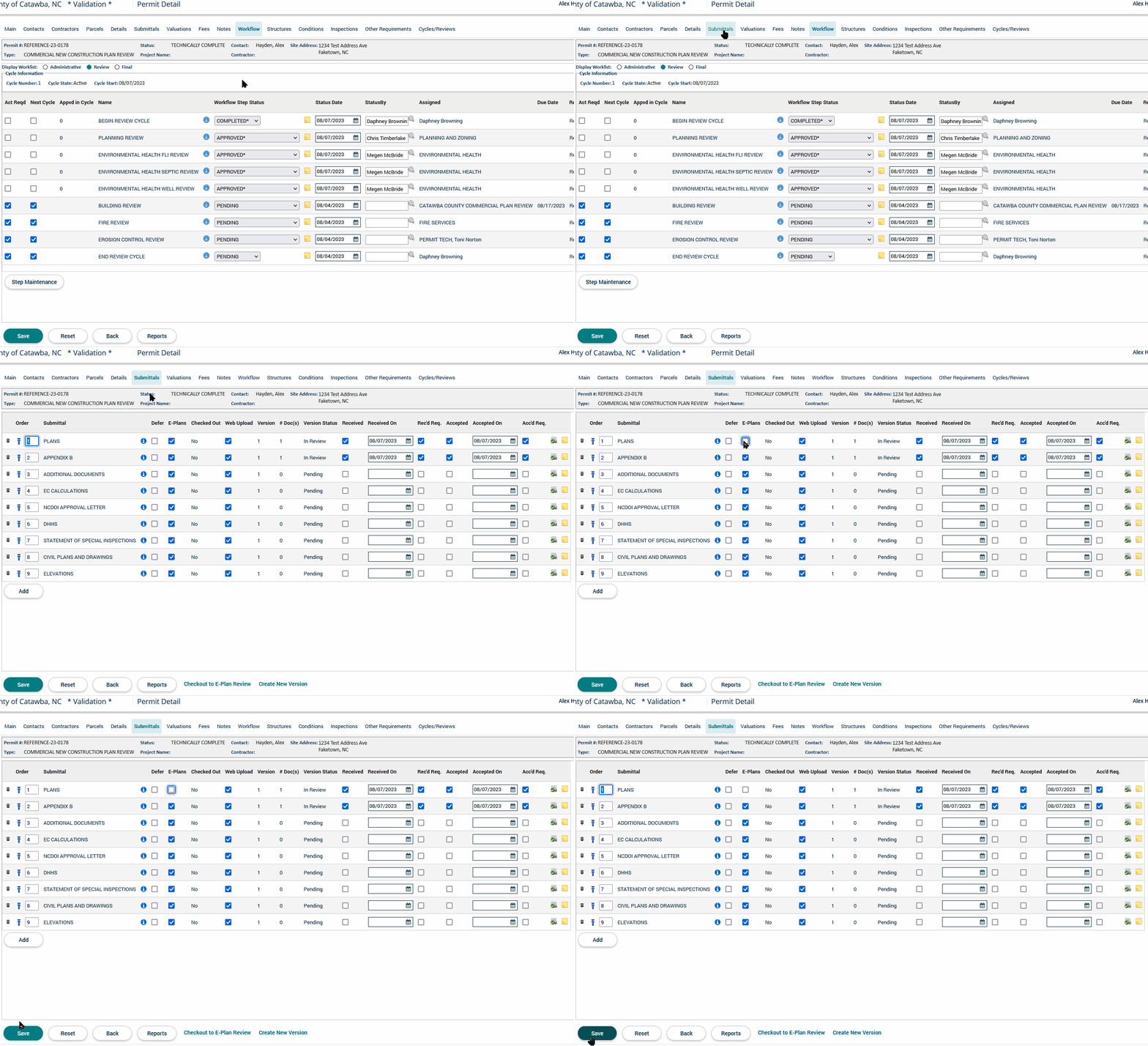
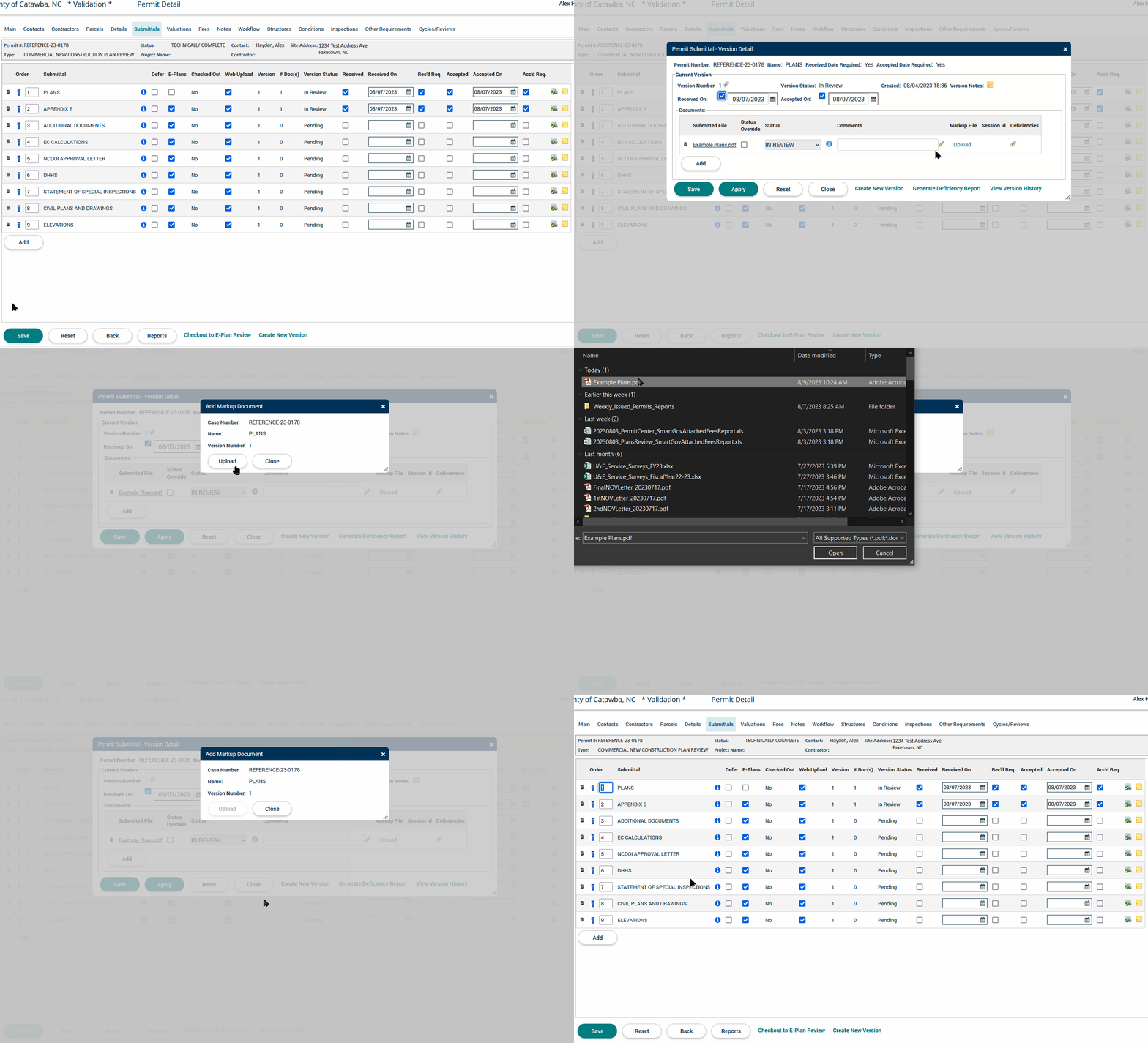
5. In the ePermit Back Office, return to the application and navigate to the Submittals tab. If it is already checked, UNCHECK the "E-Plans" box next to the submittal you are reviewing and click on the Save button.
6. Next, click on the button beside the name of the submittal you marked up. In the pop-up window, click on the Upload link under the Markup File column. In the next pop-up window, click the Upload button. In the File Explorer, select the file which you marked up and saved in Bluebeam Revu. Wait for the upload to complete and then click on the Save button.
7. Navigate to the Workflow tab and click on the button next to your department's review workflow step. In the pop-up window, update the File Status of the document based on the findings of your review, scroll down, and click on the Save button. If the File Status for the submittal is Deficient, click on the  icon at the end of the row for that submittal. Then, in the pop-up window, select the corresponding Document name from the drop-down, select your department's review workflow step for the Step, and type "See the Markup File inside the corresponding Permit Submittals' file upload for deficiency notes." into the Deficiency Comments. Lastly, click the Save buttons to leave the pop-up windows.
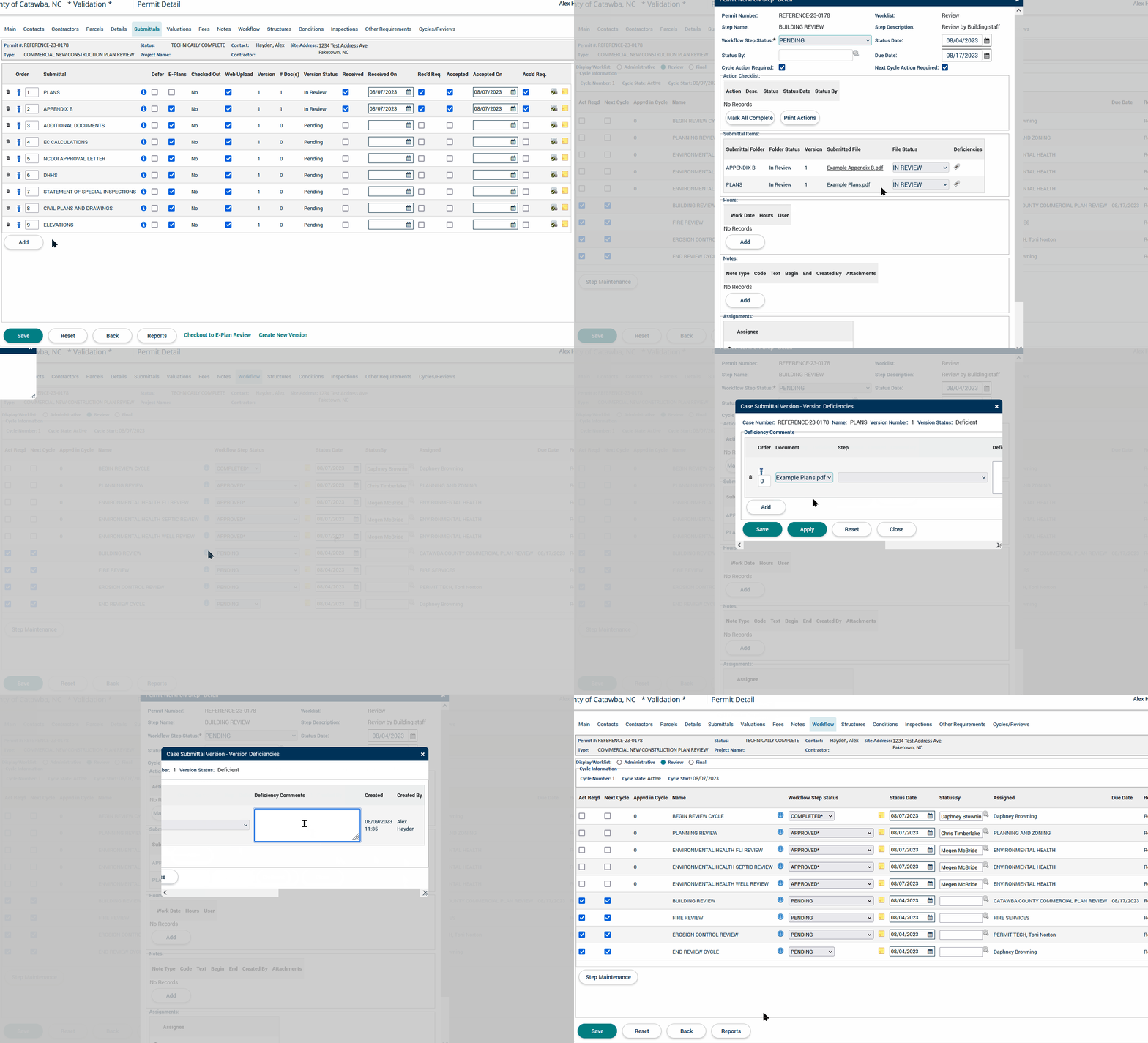
8. Repeat steps 1 thru 7 above for any remaining submittals which you need to review for the application.
9. Once all submittals have been reviewed for the application, return to the Workflow tab. Click on the button next to your department's review workflow step. Update the Workflow Step Status based on the results of your review(s) [Note: this is the overall result of your review i.e. if even one Submittal is found Deficient, then the Workflow Step Status should also be marked Deficient]. If the Workflow Step Status is set for Deficient, you will be prompted to provide a brief Note. In the required Text field, type "See the Markup File(s) inside the Permit Submittals' file upload(s) for deficiency notes." Click on the Create button. Make sure that the Next Cycle Action Required box is checked. Scroll down and click the Save button.
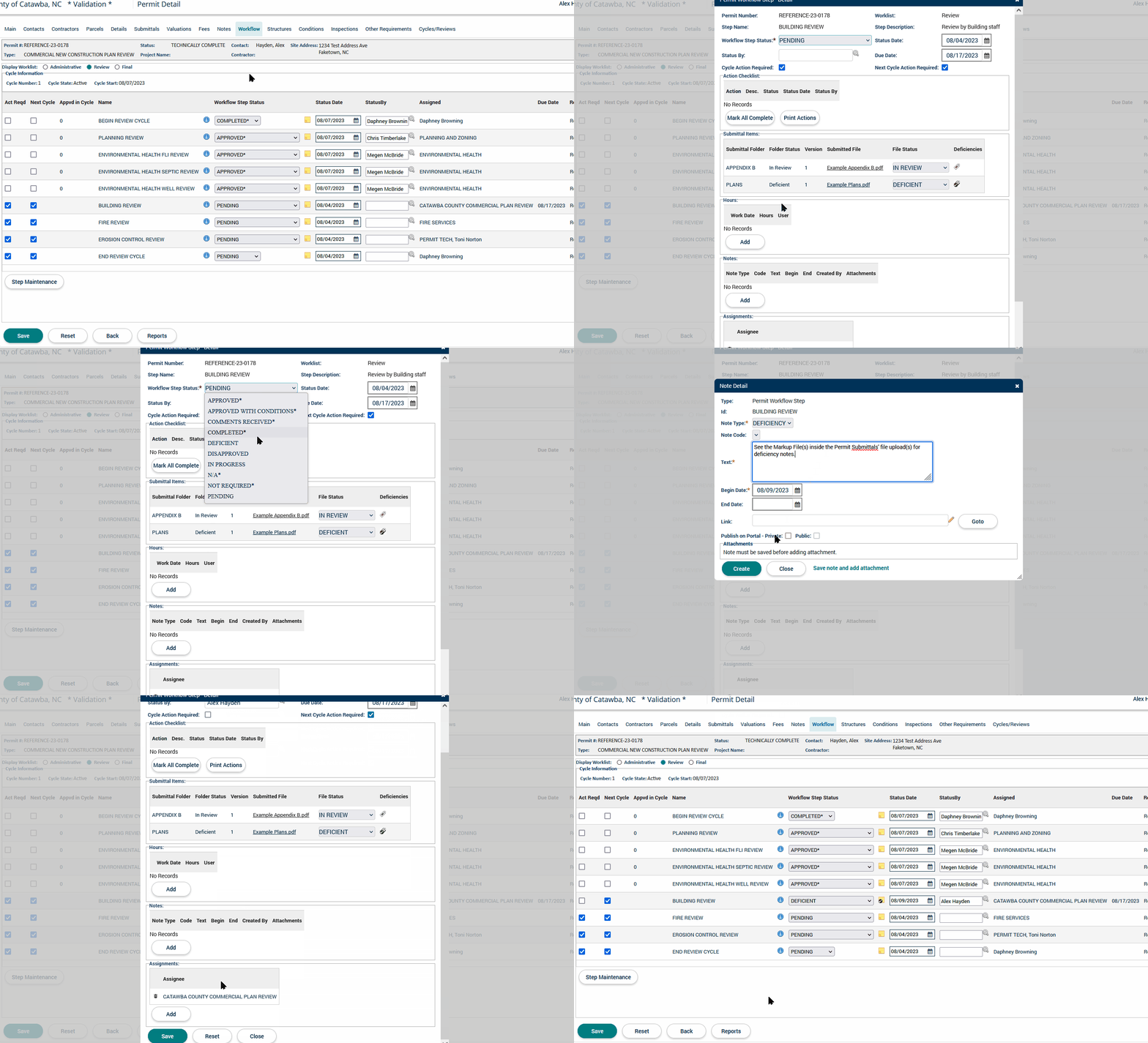
10. If a Workflow Step Status has a deficiency or if all Workflow Steps having been approved, you may end the review cycle.