Reviewing a Plan Submitted to Commercial Plans Review
Follow the steps shown below to review plans submitted to Catawba County's Commercial Plans Review department.
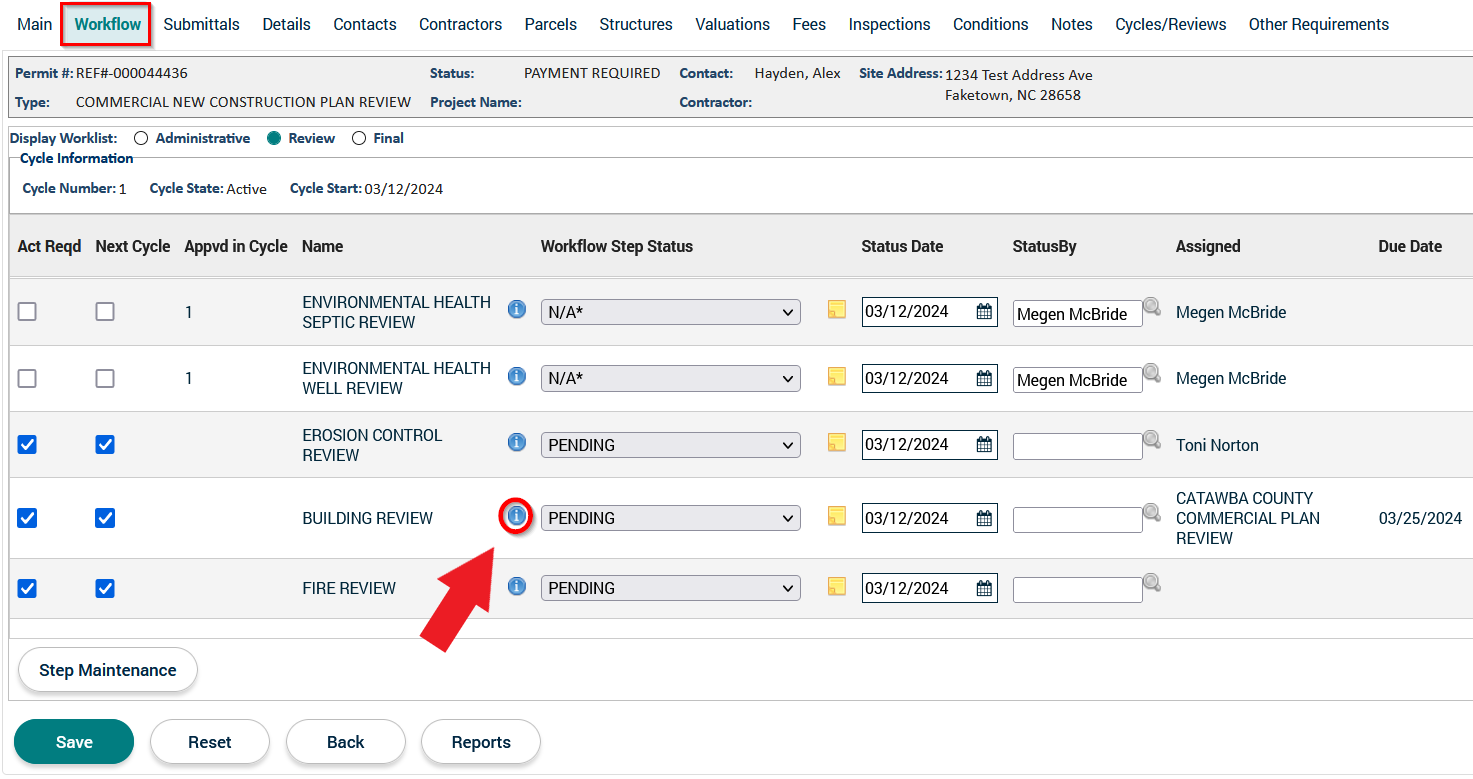
1. Click on the Workflow tab and then click on the  icon next to you department's Review Workflow Step.
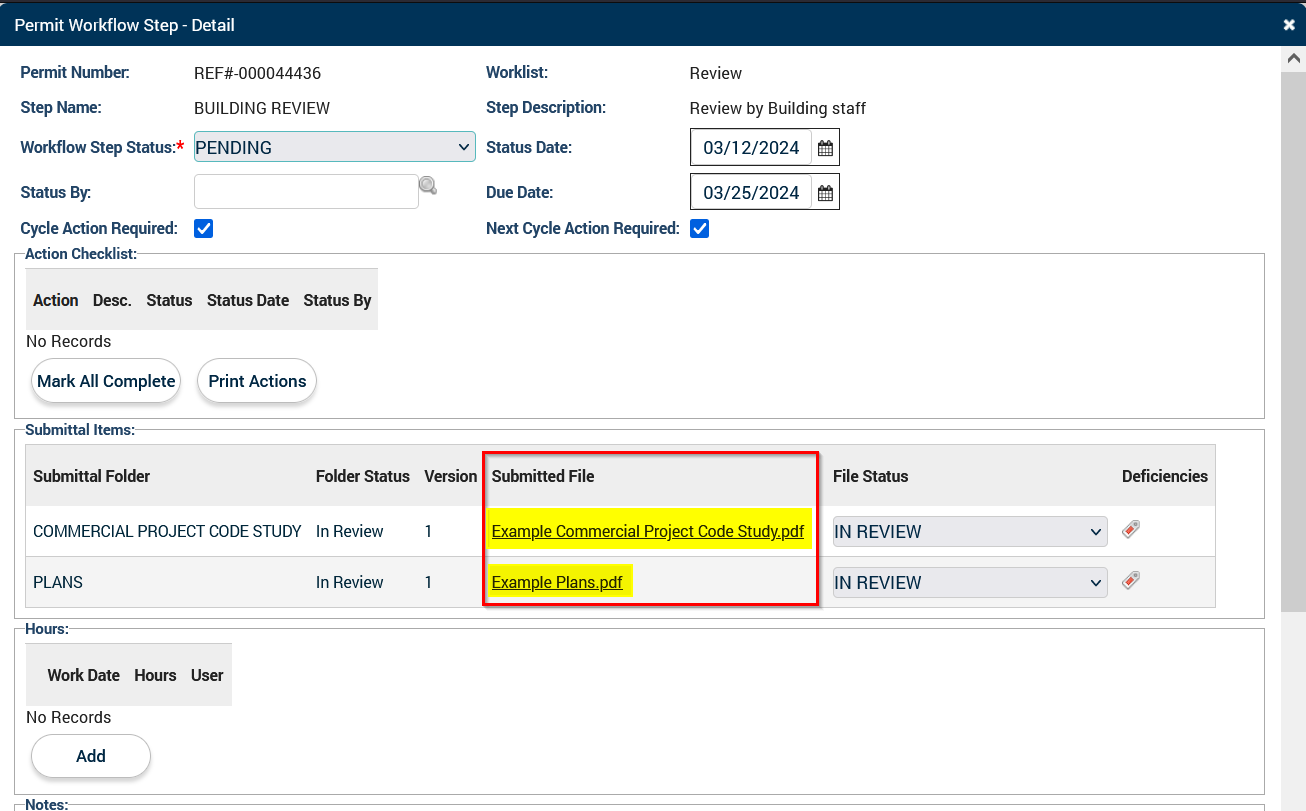
2. In the pop-up window, click on the file name(s) of the submittal(s) you wish to review. This will either download or open the file(s) depending on your computer settings.
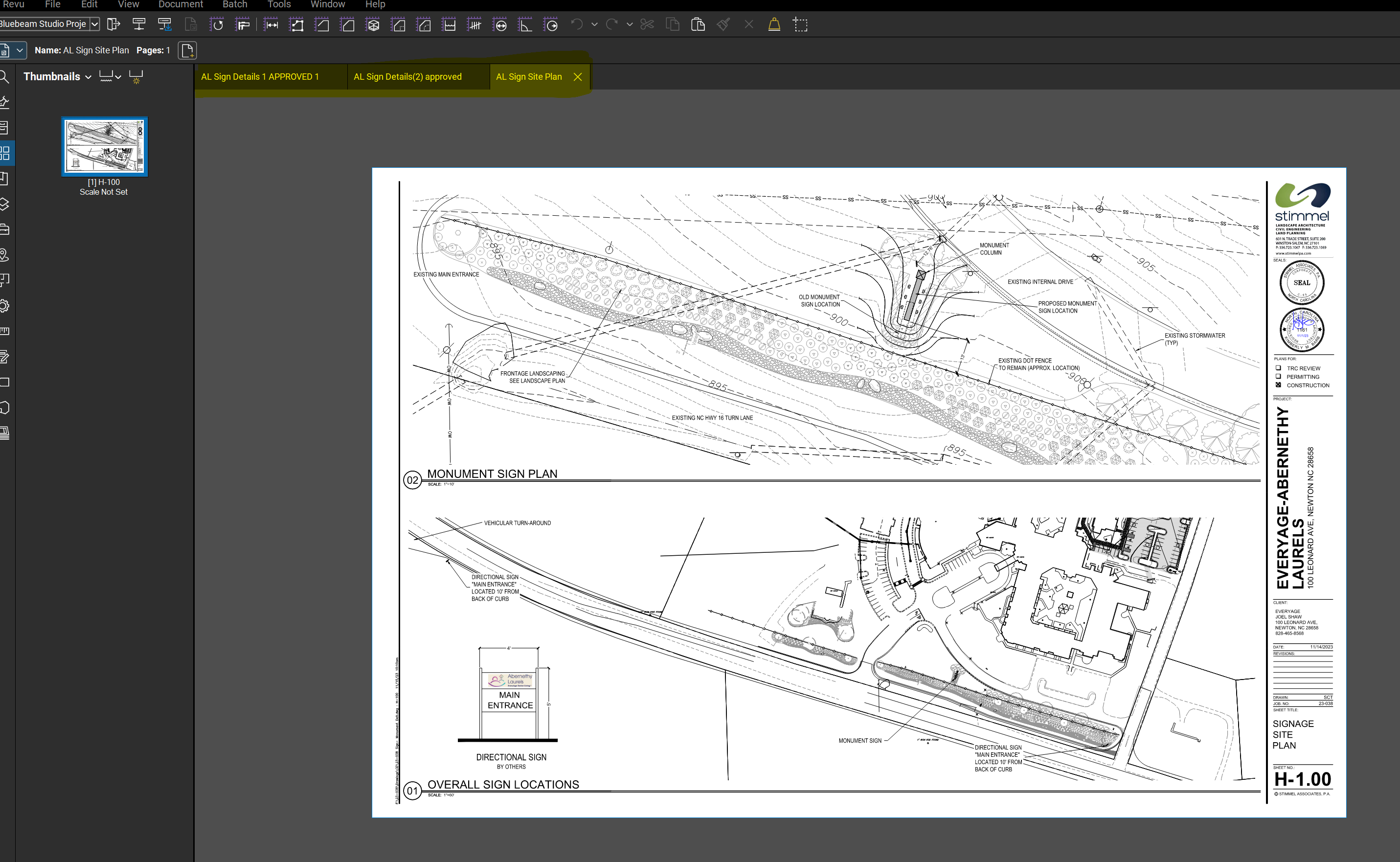
3. In Bluebeam Revu, review the details of the submitted plan(s) as you normally would, but do NOT use any mark-up tools.
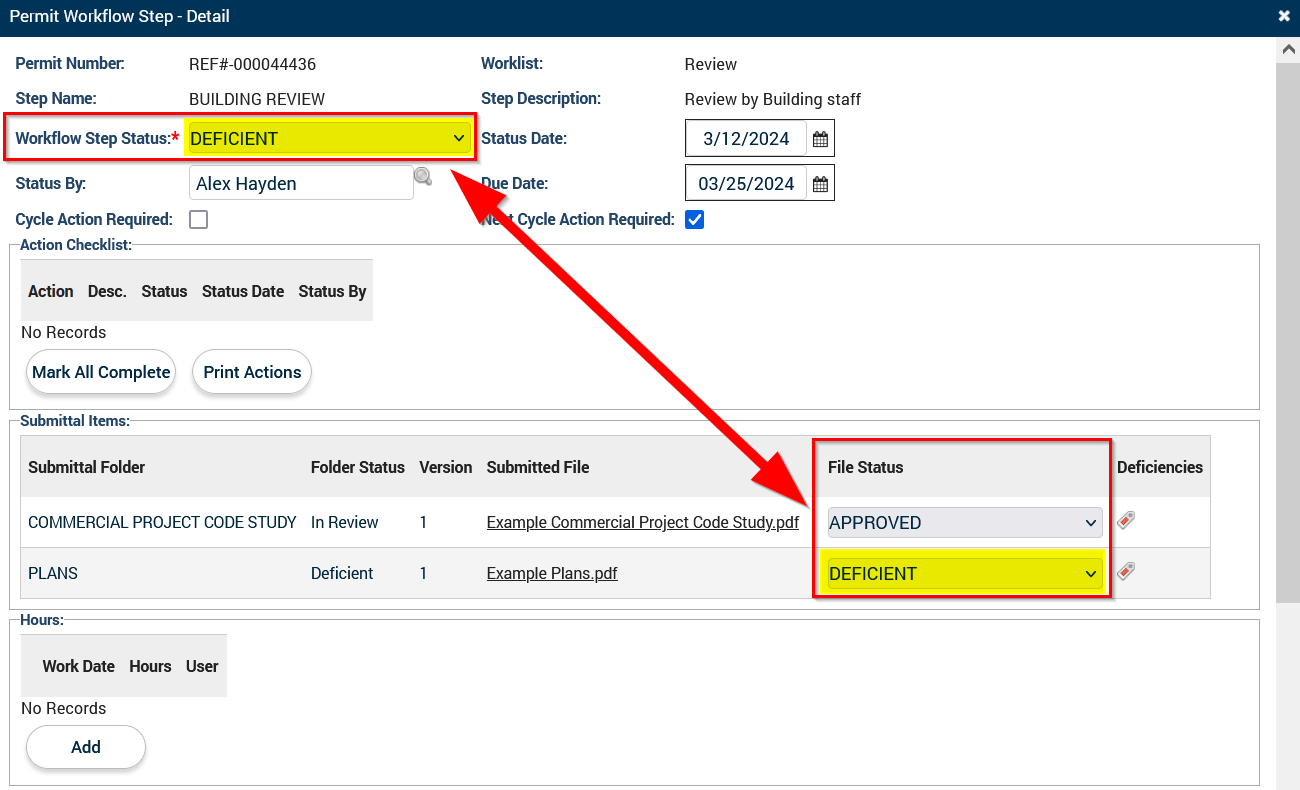
4. Return to the SmartGov pop-up window and change the File Status of each submittal to match the result of your review(s).
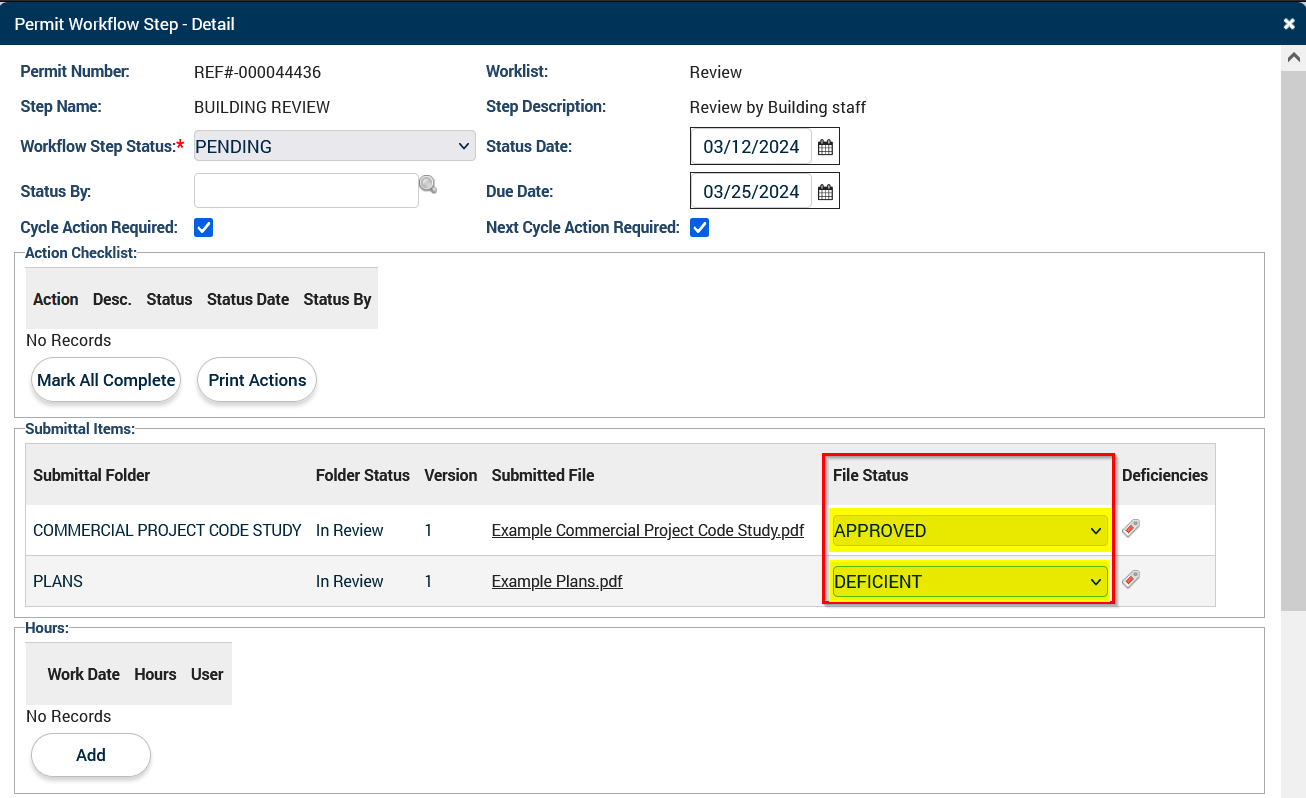
5. Update the Workflow Step Status to correspond with your File Status(es). If even one submittal has a "Deficient" File Status, however, the entire Workflow Step Status will need to be set as "Deficient" as well.
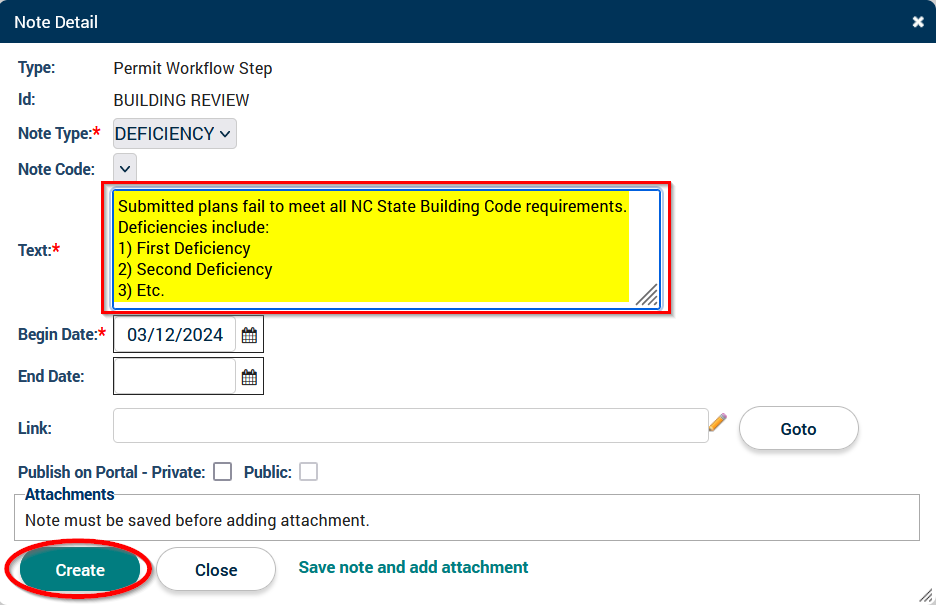
6. If your Workflow Step Status is set as "Deficient," you will be prompted to enter a Deficiency Note. Enter the deficiency comments from your review here and click on the Create button.
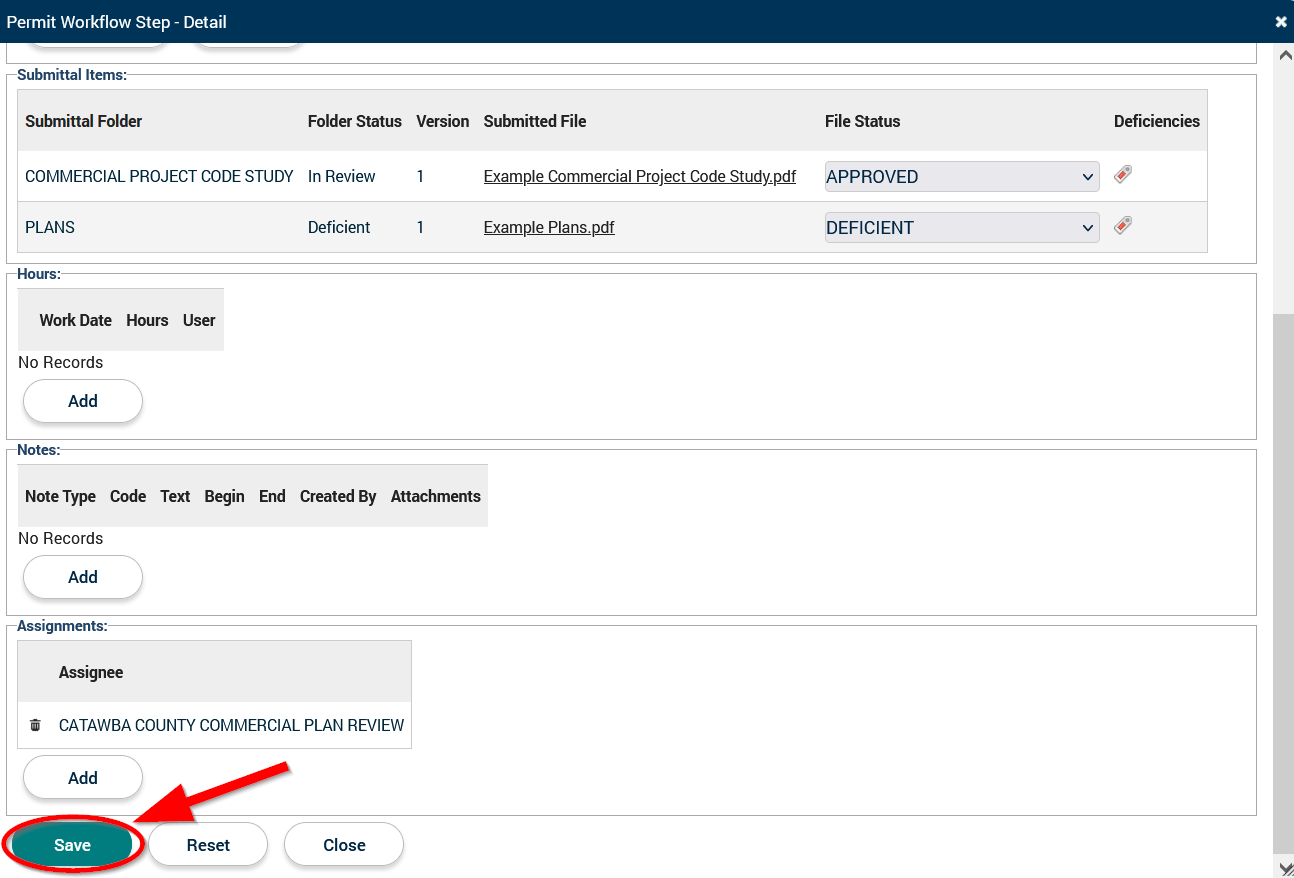
7. After creating your Deficiency Note, click on the Save button at the bottom of the pop-up window.
-------------------------ADDITIONAL INSTRUCTIONS BELOW ARE FOR CATAWBA COUNTY BUILDING SERVICES REVIEWERS ONLY-------------------------
8. If plans are deficient, wait for the resubmittal and then follow steps 1 thru 7 again. If plans are completely approved, apply both your Approved Stamp and the Job Copy Stamp to the plans using Bluebeam Revu.
9. In Bluebeam Revu, select File > Save As and name the file the same as before but with the word "APPROVED" at the end of the file name.
10. In the Workflow tab, click on the icon next to you Building's Review Workflow Step and then enter "Approved" for both the File Status(es) and the Workflow Step Status in the resulting pop-up window.
11. Once plans have been marked approved, save the plans to a common drive so that, once all departments have approved the plans, the Plans Facilitator can update the Submittal Status as well as upload the "APPROVED" plans for the applicant.