Ending the Review Cycle
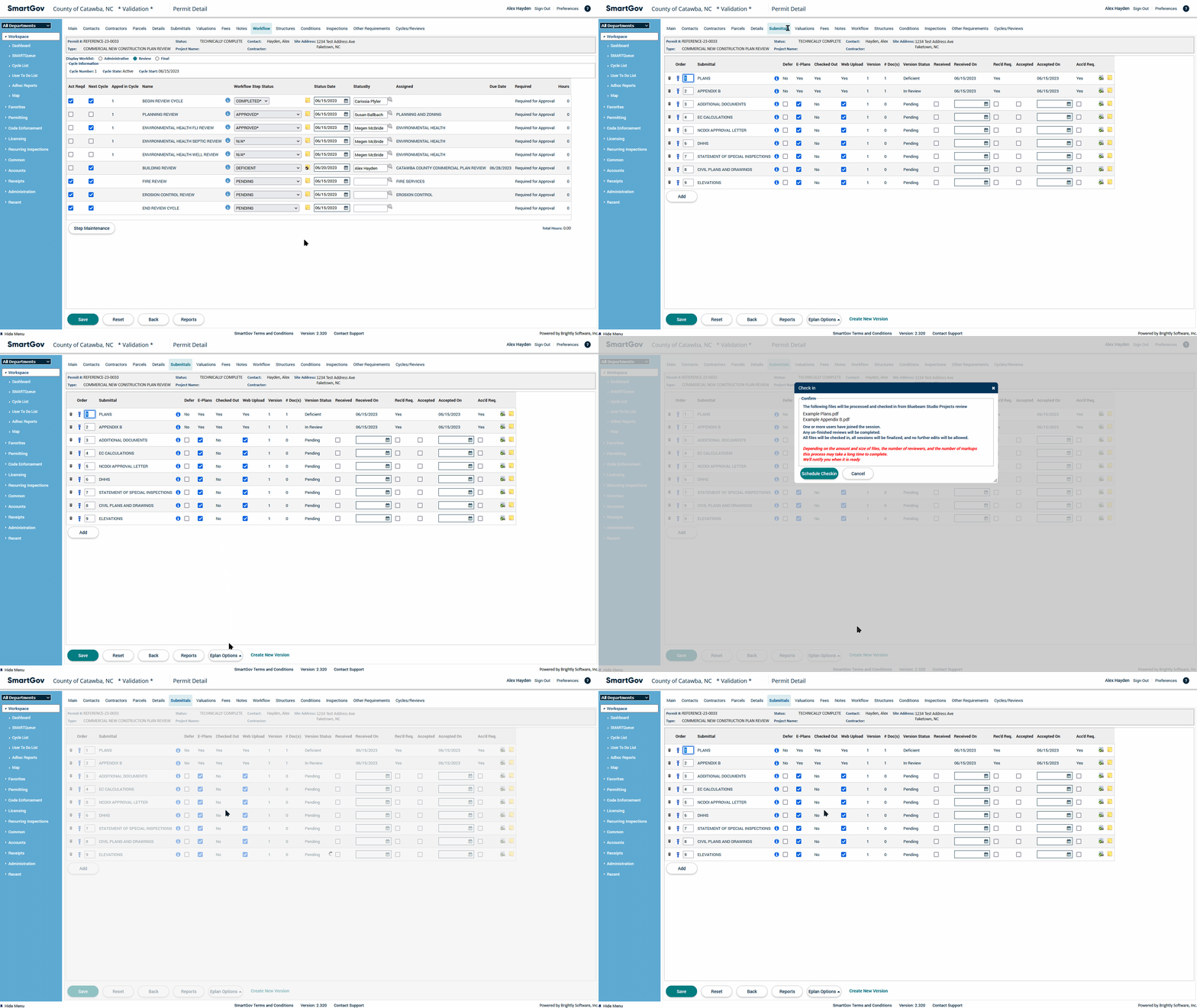
1. Go to the Submittals tab. Click on the Eplan Options button at the bottom of the page and then click on the Check In From Eplan Review option. Click the Schedule Checkin button.
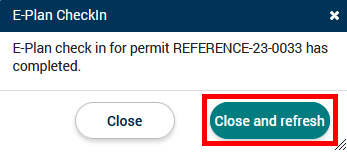
2. You should receive a pop-up once the check-in completes; click on the Close and refresh button. An email from Bluebeam should also be sent out once the check-in has completed and the Bluebeam Studio session has ended.
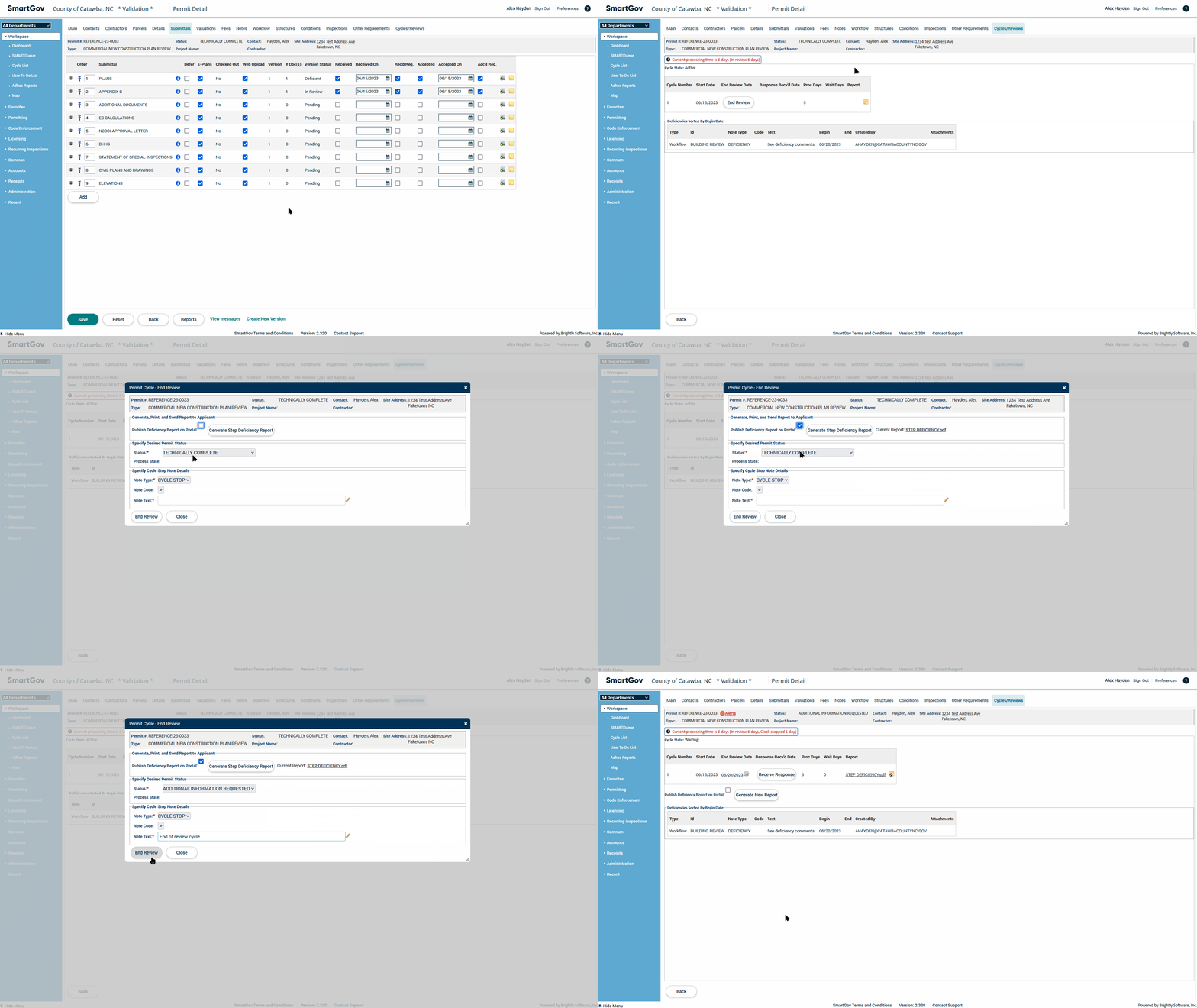
3. Go to the Cycles/Reviews tab. Click on the End Review button. If a Force Close Request window pops up, click on the Force End Review button. In the Permit Cycle pop-up window, check the box next to Publish Deficiency Report on Portal and press the Generate Step Deficiency Report button. Once the report generates, return to the Back Office. Select "Additional Information Requested" from the Status dropdown and enter "End of review cycle" for the Note Text. Click on the End Review button. Click the Close button if an alert displays.
4. If a Deficiency Notice was generated, go to the Main tab and change the status to "DEFICIENCY NOTICE SENT."