Configuring your User To Do List for Plan Reviews
Follow the steps shown below to the see plan reviews assigned to you and your department in your User To Do List.
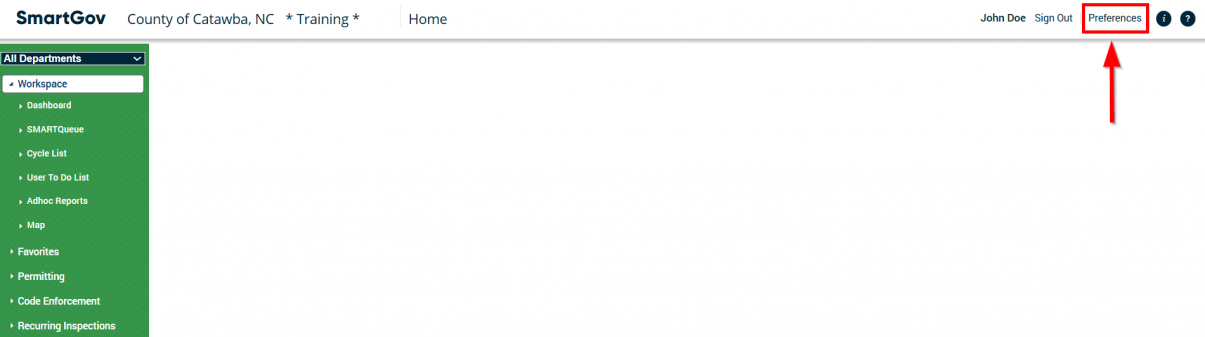
1. From the Dashboard in the ePermits Back Office, click on Preferences in the top-right corner.
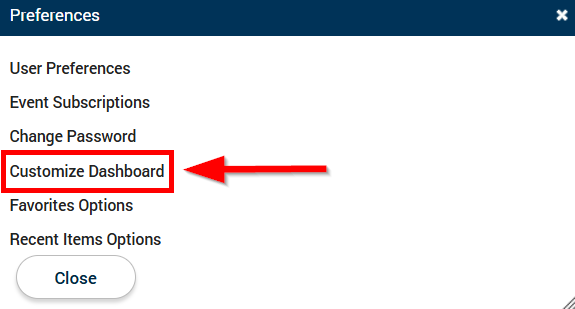
2. In the "Preferences" pop-up window, click on Customize Dashboard.
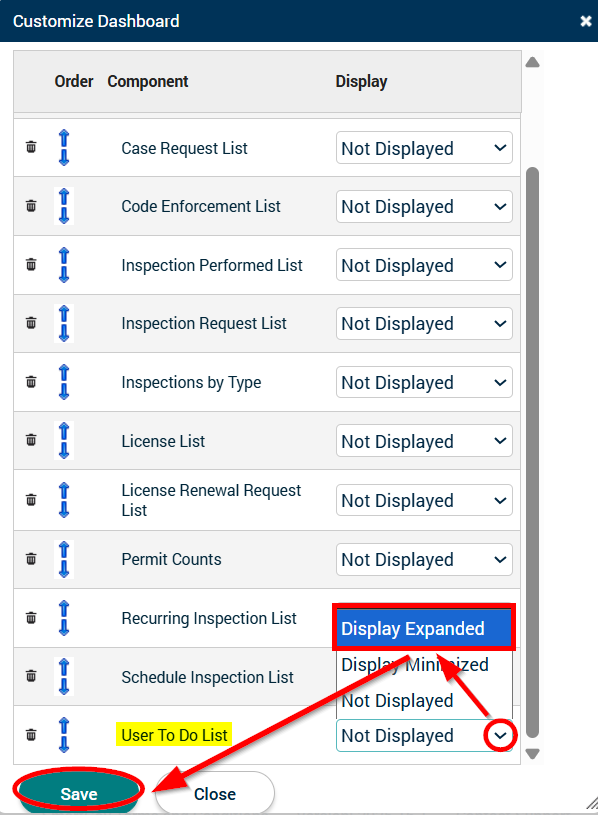
3. In the "Customize Dashboard" pop-up window, scroll down, click on the dropdown next to "User To Do List," select "Display Expanded," and then click the Save button.
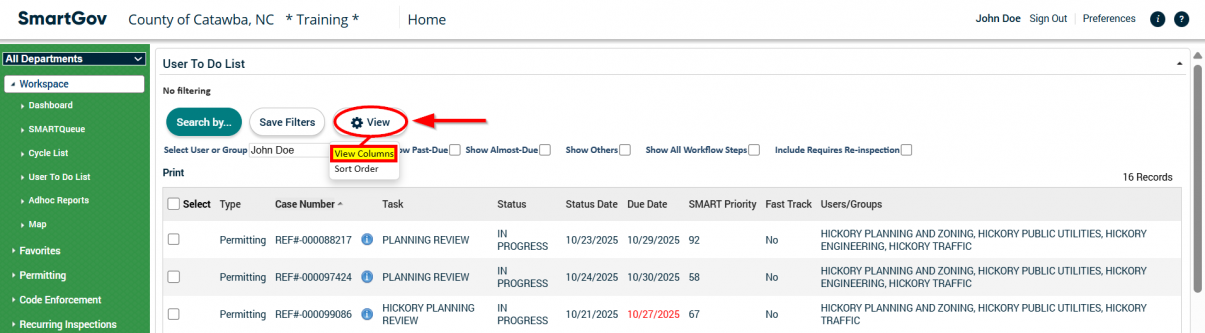
4. In the User To Do List now displayed on your Dashboard, click on the View button and then click View Columns in the dropdown.
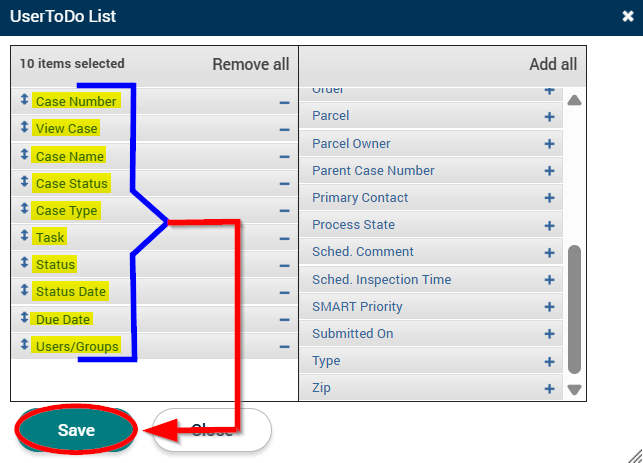
5. In the "UserToDo List" pop-up window, modify the items selected on the left so that they match both the list and the order displayed below. Once done, click the Save button.
- Case Number
- View Case
- Case Name
- Case Status
- Case Type
- Task
- Status
- Status Date
- Due Date
- Users/Groups
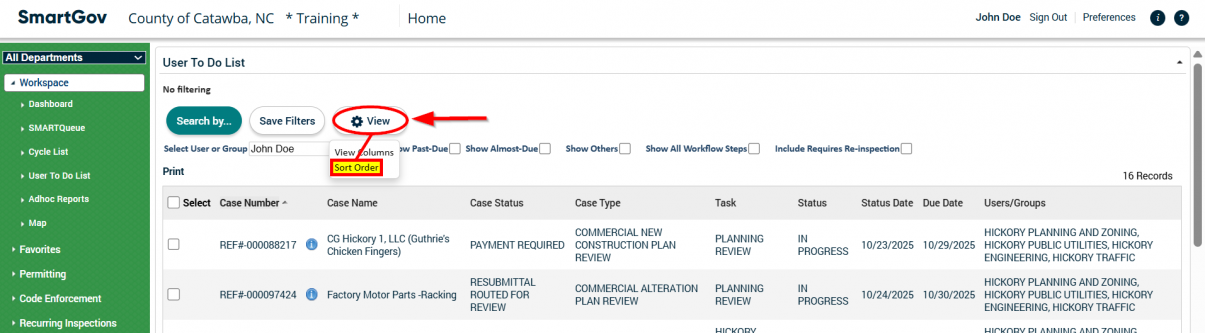
6. In the User To Do List on your Dashboard, click on the View button and then click Sort Order in the dropdown.
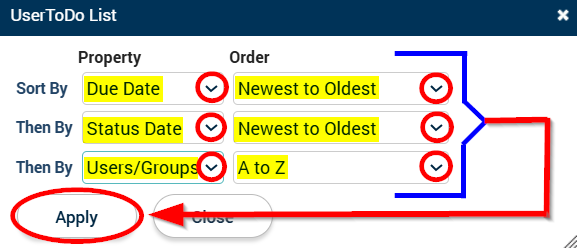
7.In the "UserToDo List" pop-up window, configure the dropdowns so that they match what is shown below. Once done, click the Apply button.
| Property | Order | |
|---|---|---|
| Sort By | Due Date | Newest to Oldest |
| Then By | Status Date | Newest to Oldest |
| Then By | Users/Groups | A to Z |
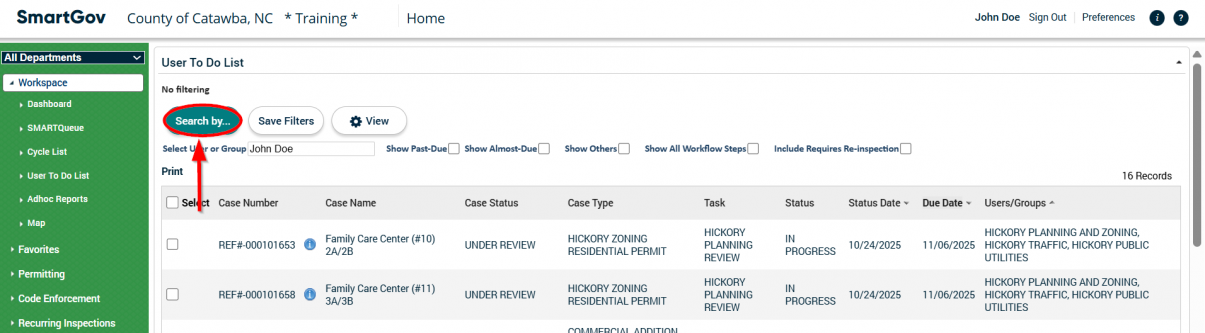
8.In the User To Do List on your Dashboard, click the Search by... button.
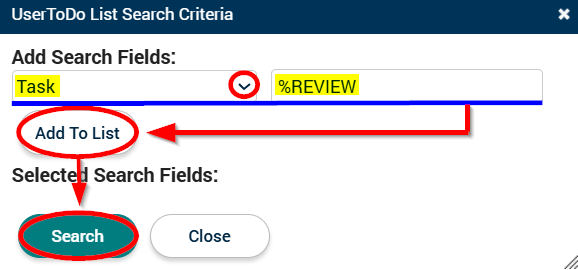
9.In the "UserToDo List Search Criteria" pop-up window, select "Task" from the dropdown and then type %REVIEW into the field to the right of "Task." Click the Add To List button and then click the Search button.
10.In the User To Do List on your Dashboard, click the Save Filters button.
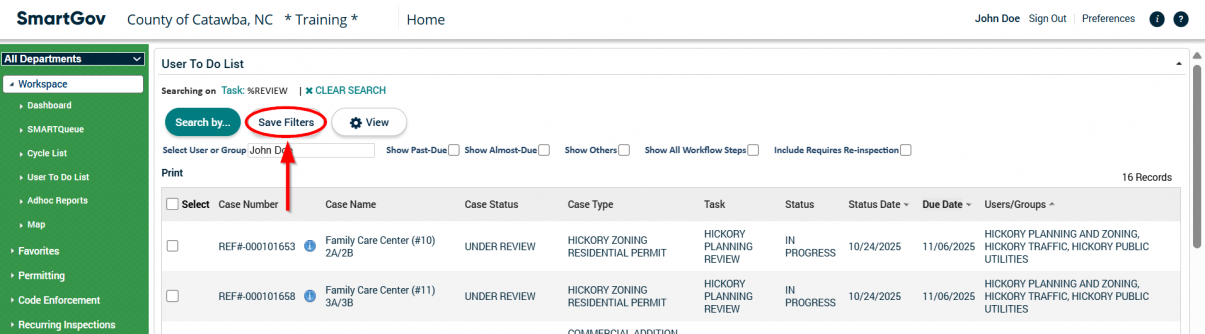
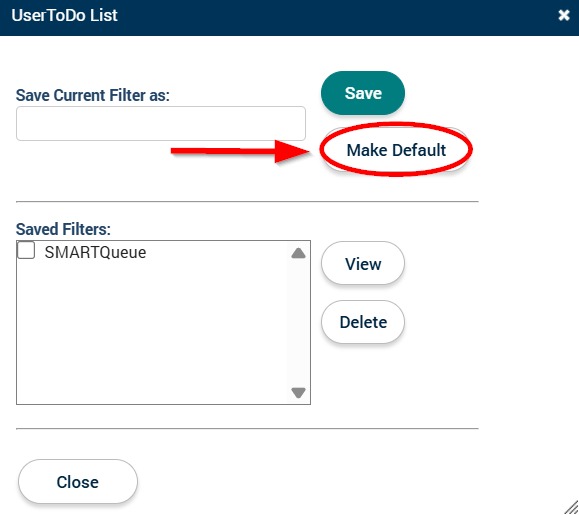
11.Lastly, in the "UserToDo List" pop-up window, click the Make Default button.