Providing Conditional Approval on Plan or Site Reviews
Follow the steps shown below to provide conditional approval on a plan review or site review.
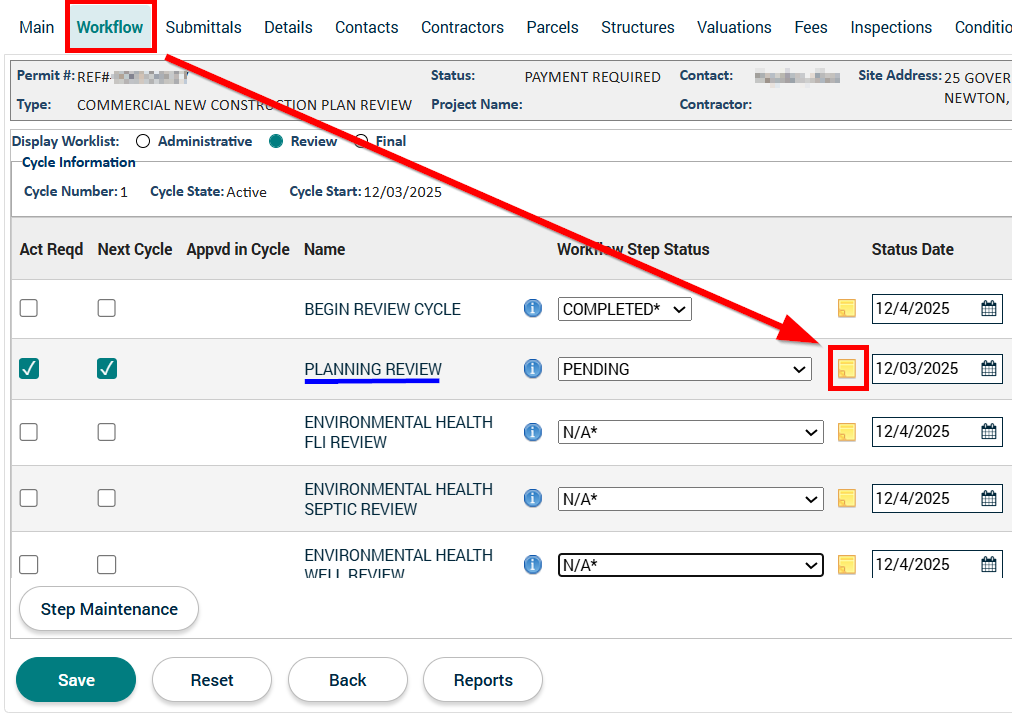
1. Navigate to the Workflow tab on the application and then click on the yellow sticky note symbol on the same row as your division's Review Workflow Step.
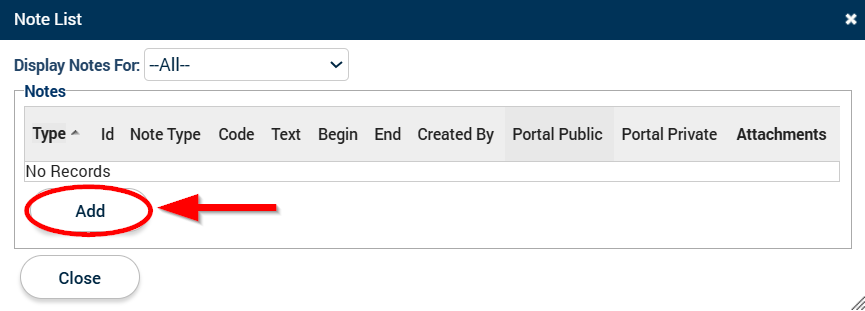
2. In the "Note List" pop-up window, click on the Add button.
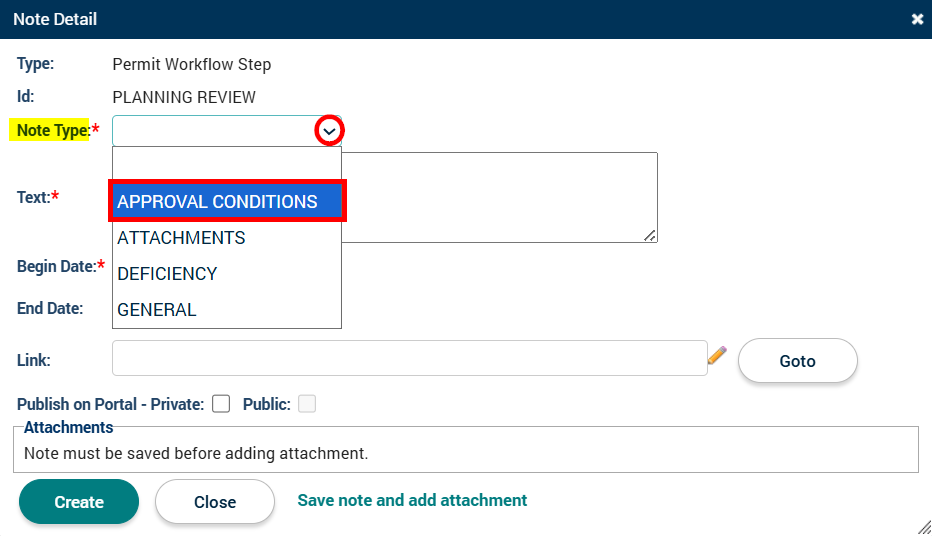
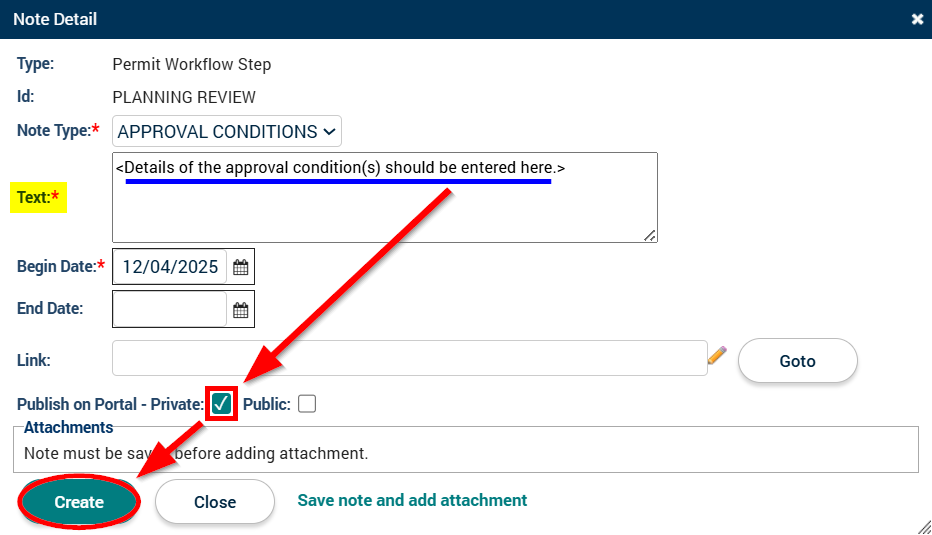
3. In the "Note Detail" pop-up window, select APPROVAL CONDITIONS from the "Note Type" dropdown.
4. Enter the specifics of the approval condition(s) into the "Text" box, check the box next to "Private" to make sure the applicant can see the APPROVAL CONDITIONS note in the ePermits Public Portal, and then click on the Create button.
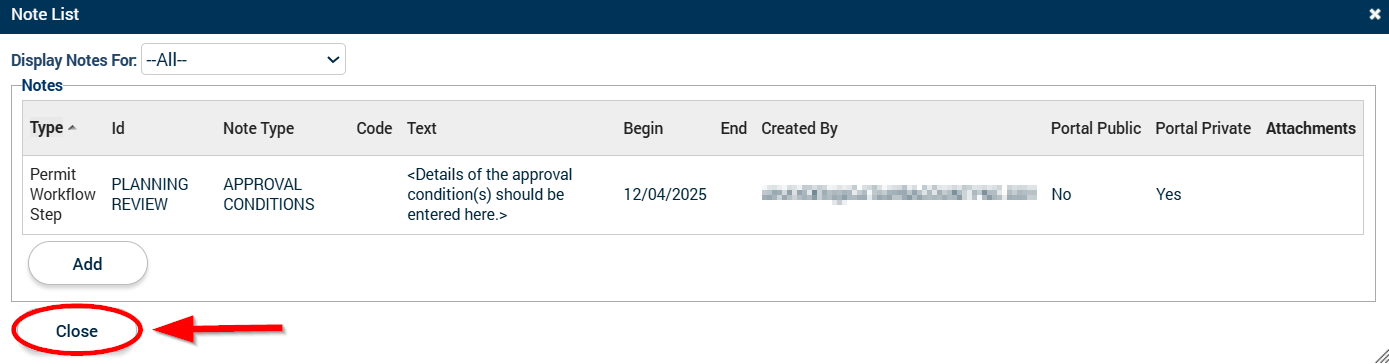
5. Click on the Close button to return to the Workflow tab of the application.
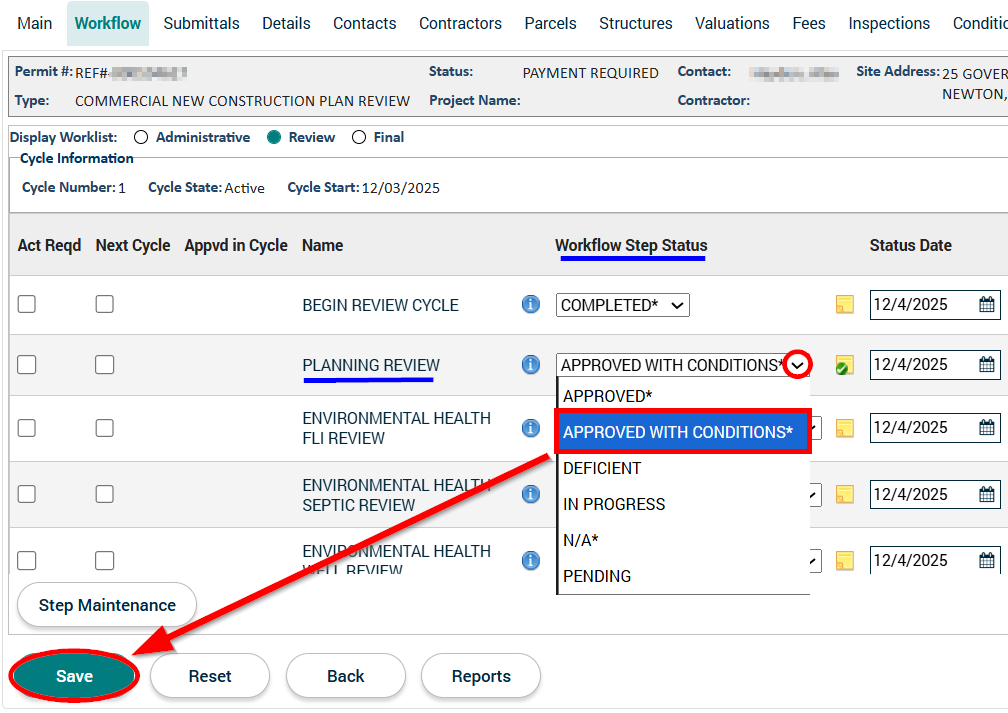
6. Lastly, on your division's Review Workflow Step, select APPROVED WITH CONDITIONS from the Workflow Step Status dropdown and then click the Save button.