Coloring Markups in Bluebeam Revu
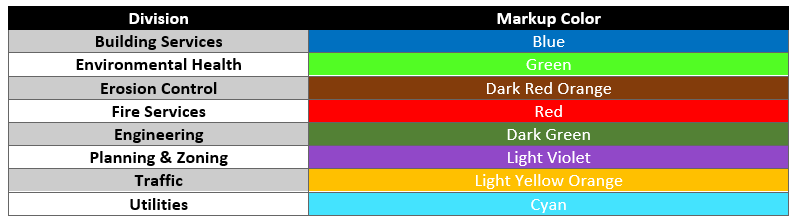
This webpage provides details on which color choice each division/department should be using for markups in the Bluebeam Revu software as well as instructions for setting these colors as a defaults.
Division/Department Colors
To create consistency amongst the jurisdictions for our applicants, the following colors should be used by the different divisions/departments for any markups which they create while using Bluebeam Revu for plan reviews.
Setting Markup Color
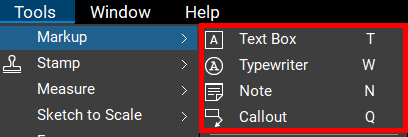
1. In Bluebeam Revu, click on Tools > Markups and select a markup.
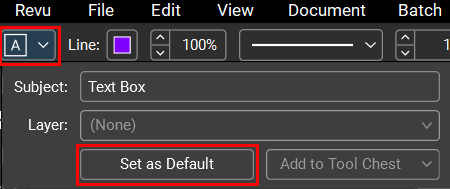
2. Below the top-bar menu, a new menu bar will appear displaying the markup's properties. Click on the color boxes in this new menu bar and change them to your division's/department's color. (Note: Hover over a color to see it's corresponding name; these color names will match precisely with those listed in division/department color guide displayed in the section above.)

3. Click on the markup symbol on the very left of the new menu bar and click on the Set as Default button.
4. Repeat steps 1 thru 3 above for any remaining markups.