Creating an ePermits Back Office account
1. Navigate to the ePermits Back Office:
https://office.smartgovcommunity.com/Public/UsernameLogOn
2. On the initial login webpage, enter your Catawba County email address and click on Next. [Note: for municipal partners, enter your first initial last name followed by @catawbacountync.gov (i.e. John Doe would type jdoe@catawbacountync.gov)]
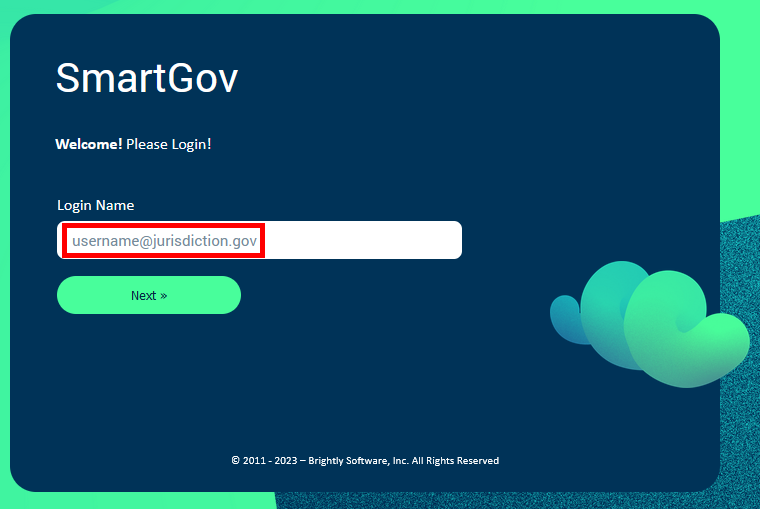
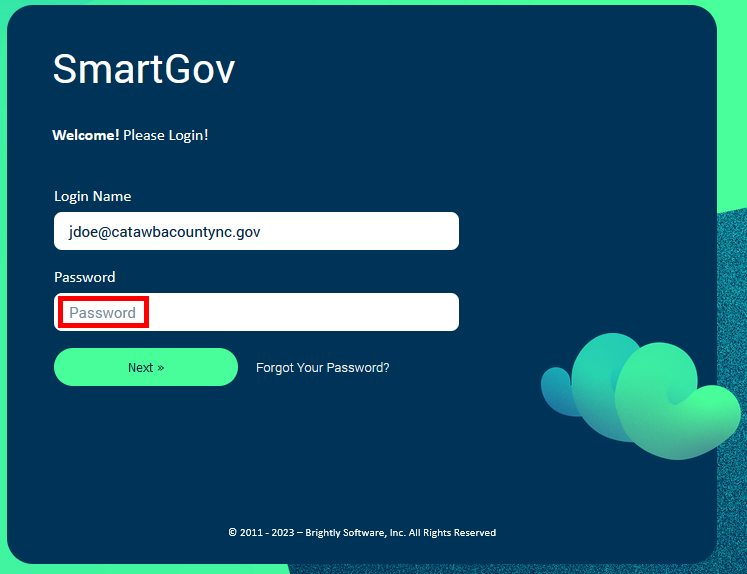
3. When asked for a password, enter your Catawba County email address again and click on Next. [Note: for municipal partners, once again enter your first initial last name followed by @catawbacountync.gov (i.e. John Doe would type jdoe@catawbacountync.gov)]
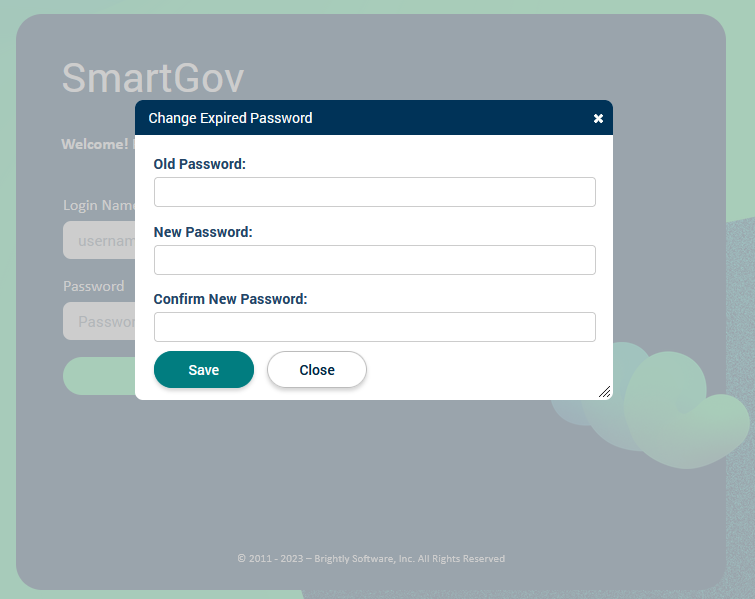
4. When prompted to change your password, enter your Catawba County email address in the "Old Password" field. Next, enter a memorable and reasonably complex password into the "New Password" and "Confirm New Password" fields. Lastly, click on Save.
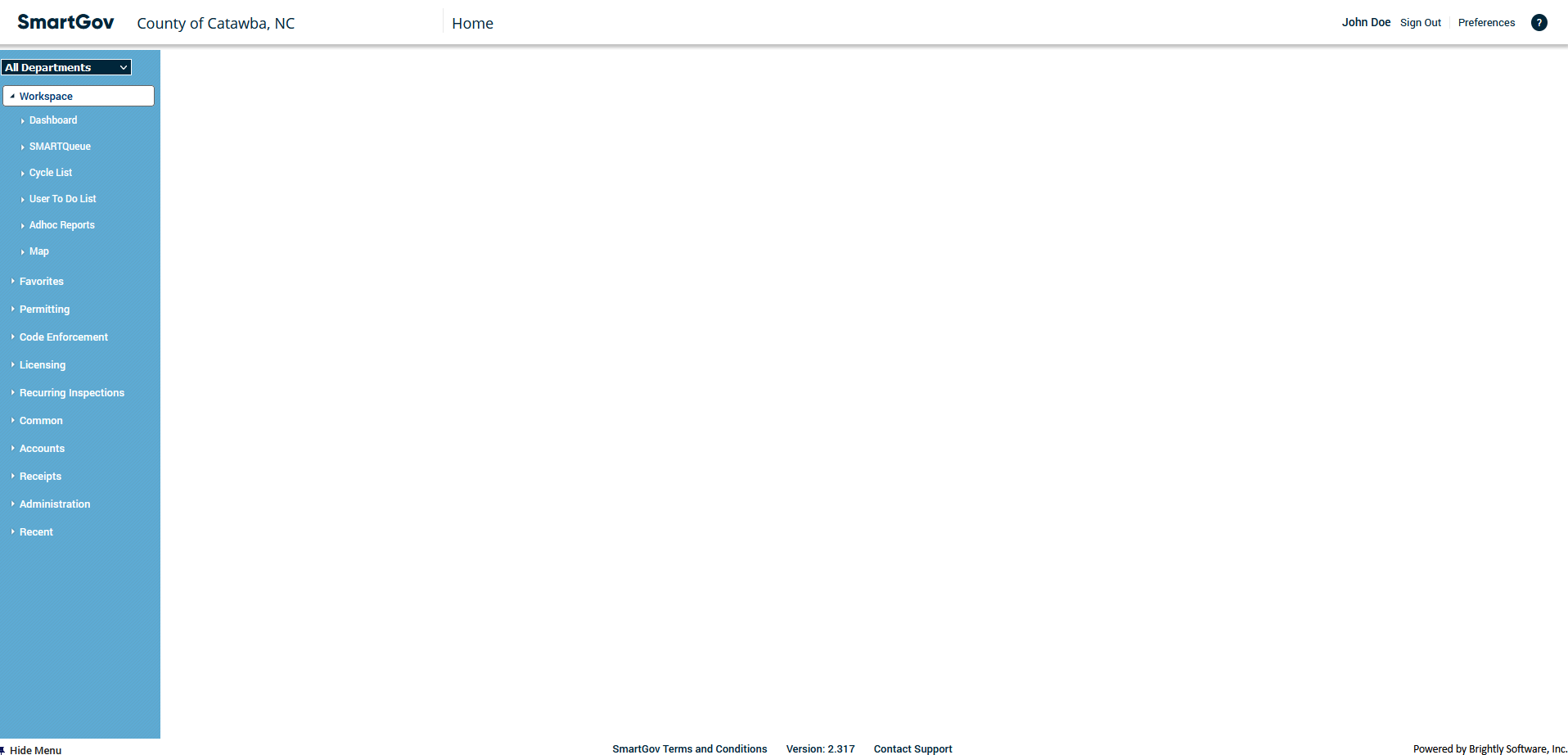
5. You should now see the Home screen for the ePermits Back Office.